A Step-by-Step Beginner Guide
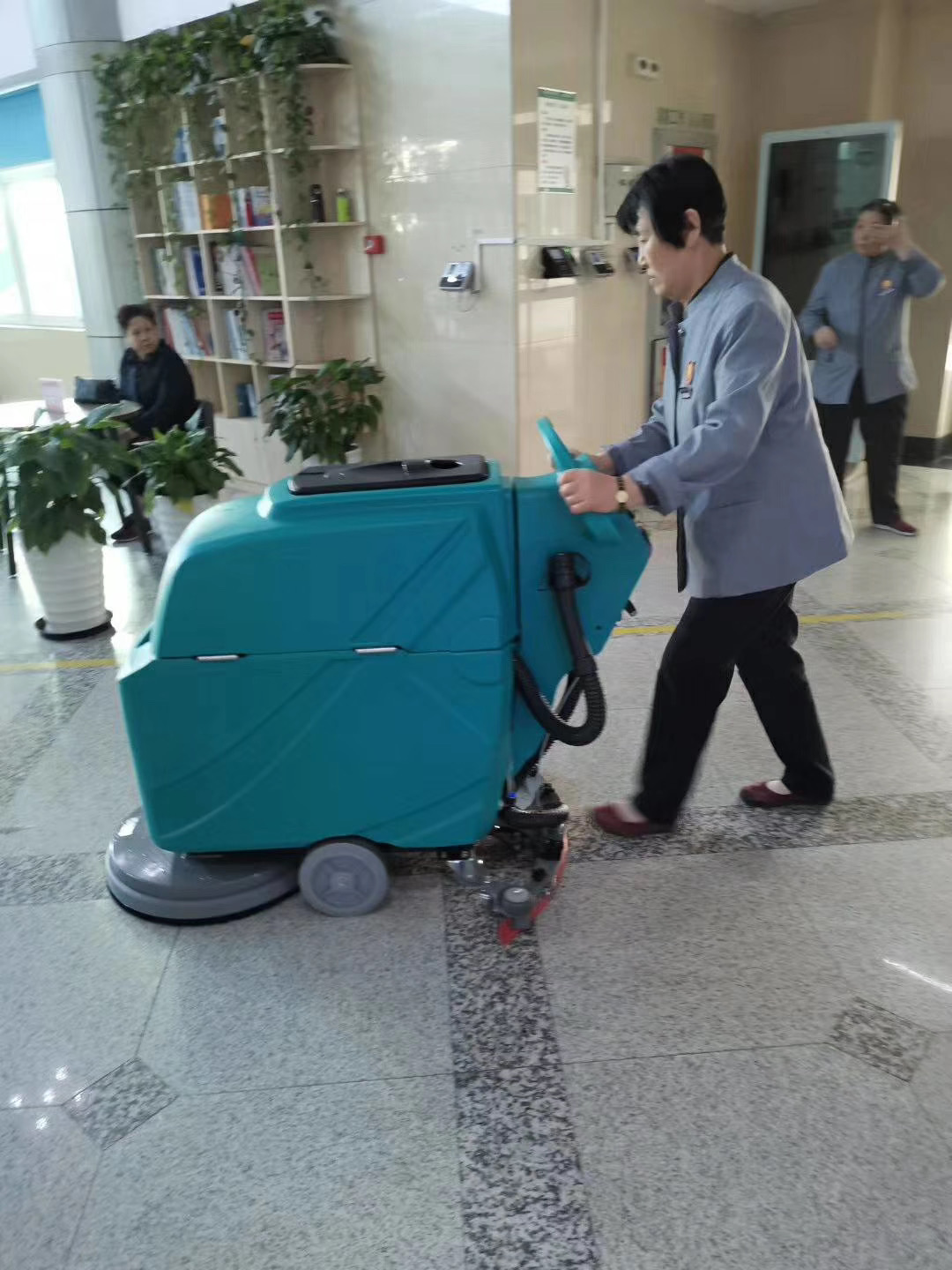
Thank you for purchasing CY floor cleaning machines. All our scrubbers and sweepers are IoT-enabled.
This guide walks you through everything step by step.
1. What Is the IoT System (And Why It Matters)
Our machine comes with a built-in IoT (Internet of Things) system, which allows it to send data to the cloud.
That means you can:
- Track machine location (GPS)
- Monitor usage time and cleaning area
- Check battery status
- View cleaning routes and history
- Receive alerts for errors or maintenance
In short:
👉 You don’t need to be on-site to know what your machine is doing.
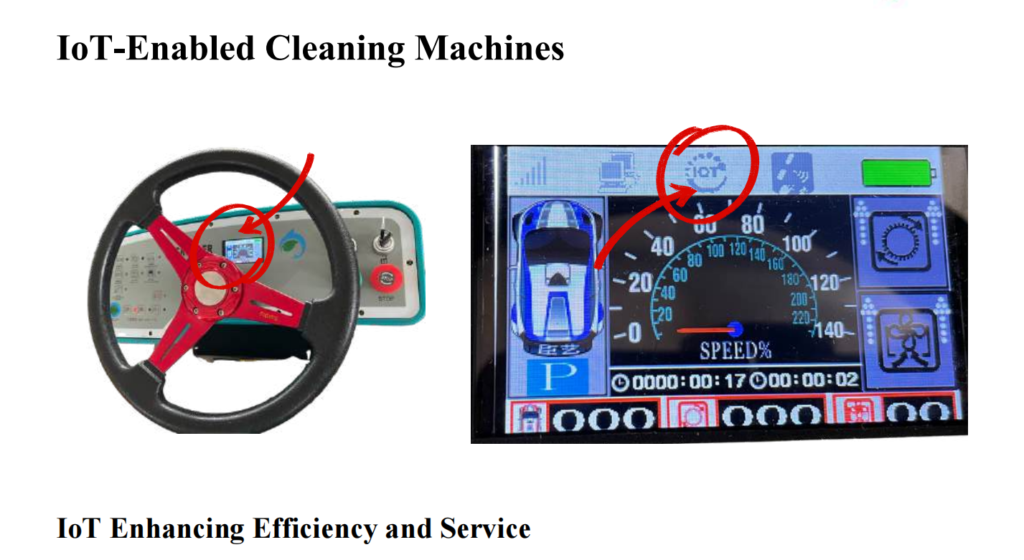
2. Before You Start: What You’ll Need
Make sure you have:
- The IoT-enabled cleaning machine (scrubber or sweeper)
- The IoT device (usually pre-installed or included)
- A SIM card (data plan required)
- Login credentials (provided by manufacturer or distributor)
3. How to Choose the Right SIM Card
This is one of the most important steps.
✅ What type of SIM card do you need?
Choose a SIM card that:
- Supports 4G/LTE data
- Has a monthly data plan
- Works in your country (local carrier recommended)
⚠️ Important notes:
- Use one SIM card per machine only
- Do NOT swap SIM cards between machines
- Make sure the SIM has active data (not voice-only)
4. How to Install the SIM Card
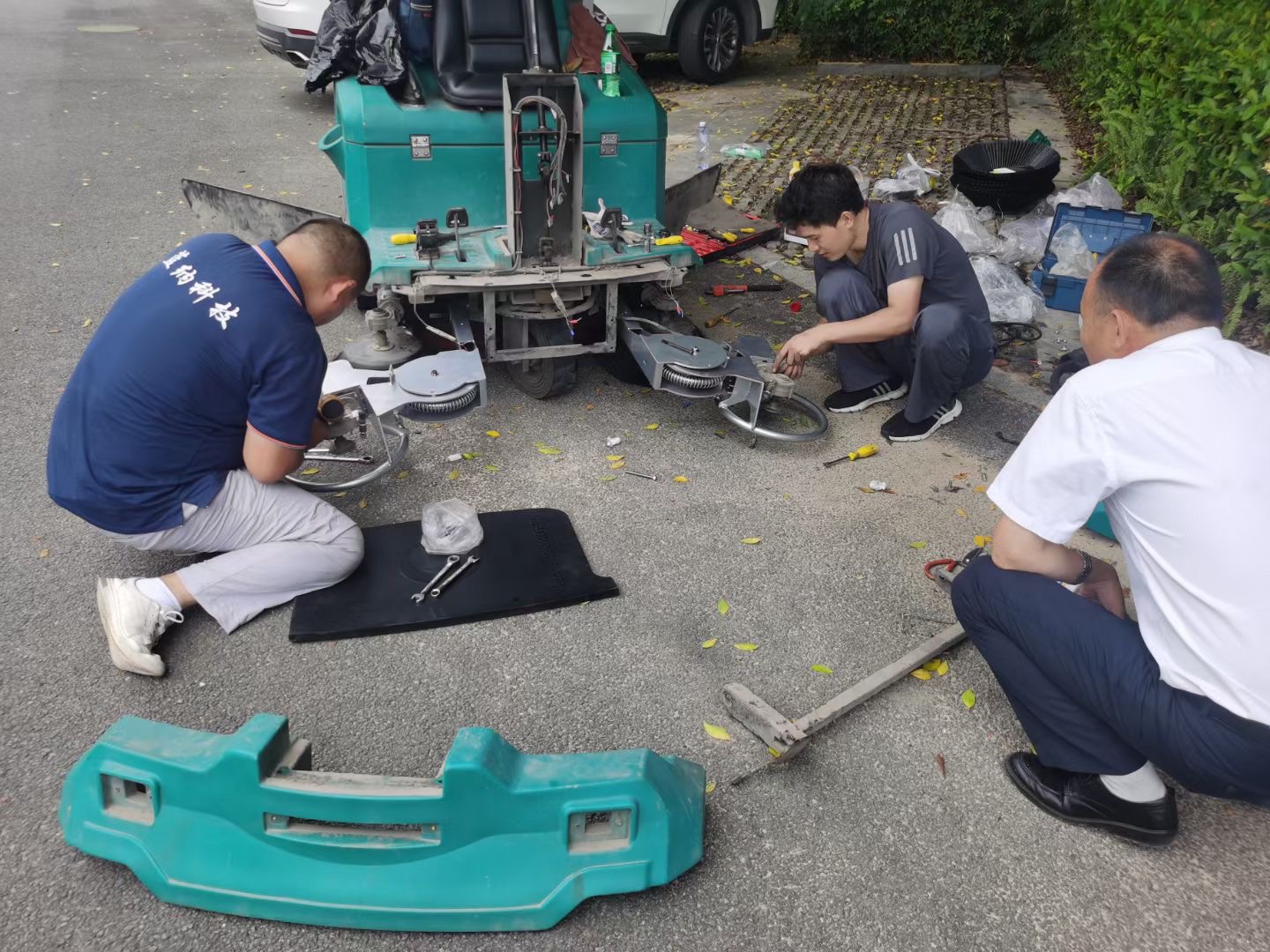
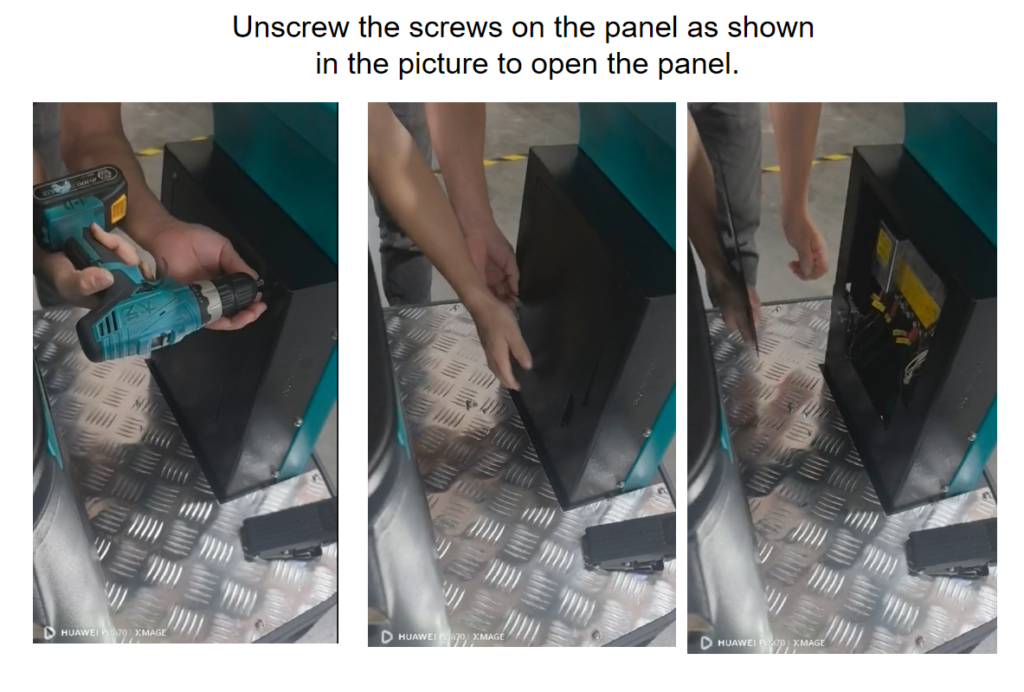
Step 1: Open the Machine Panel
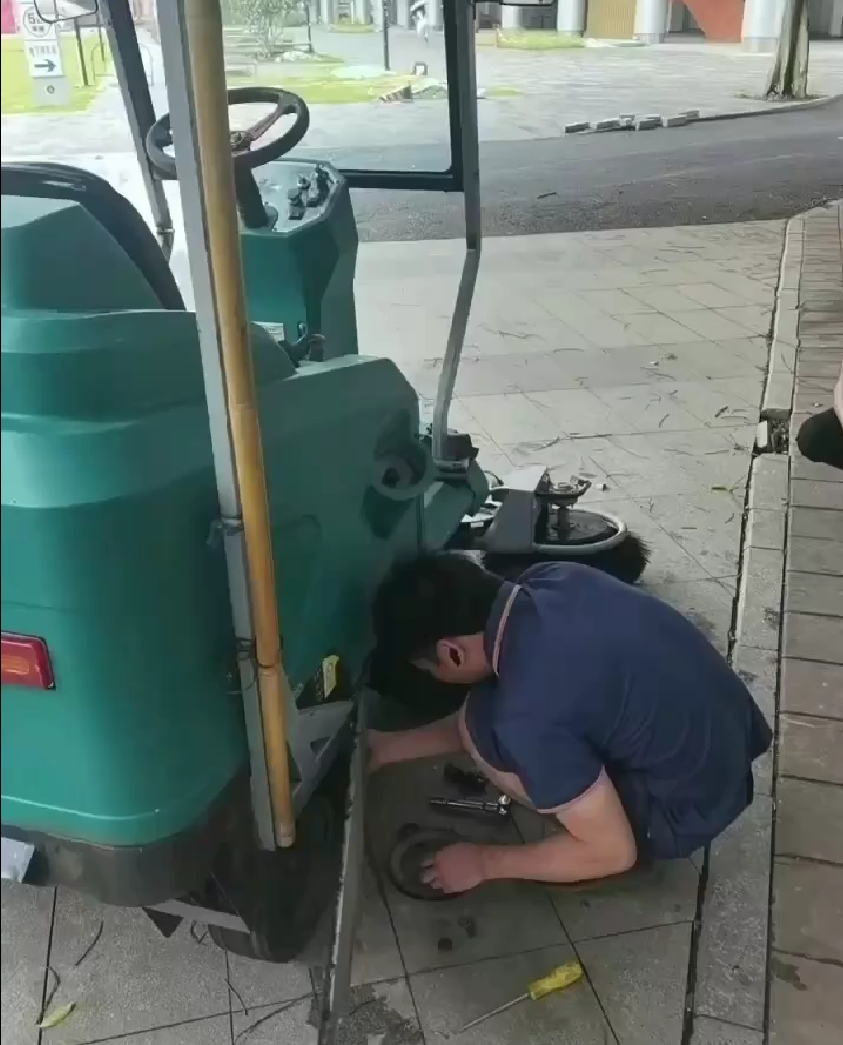
- Use a screwdriver to remove the screws
- Open the panel to access the IoT module
Step 2: Locate the SIM Card Slot
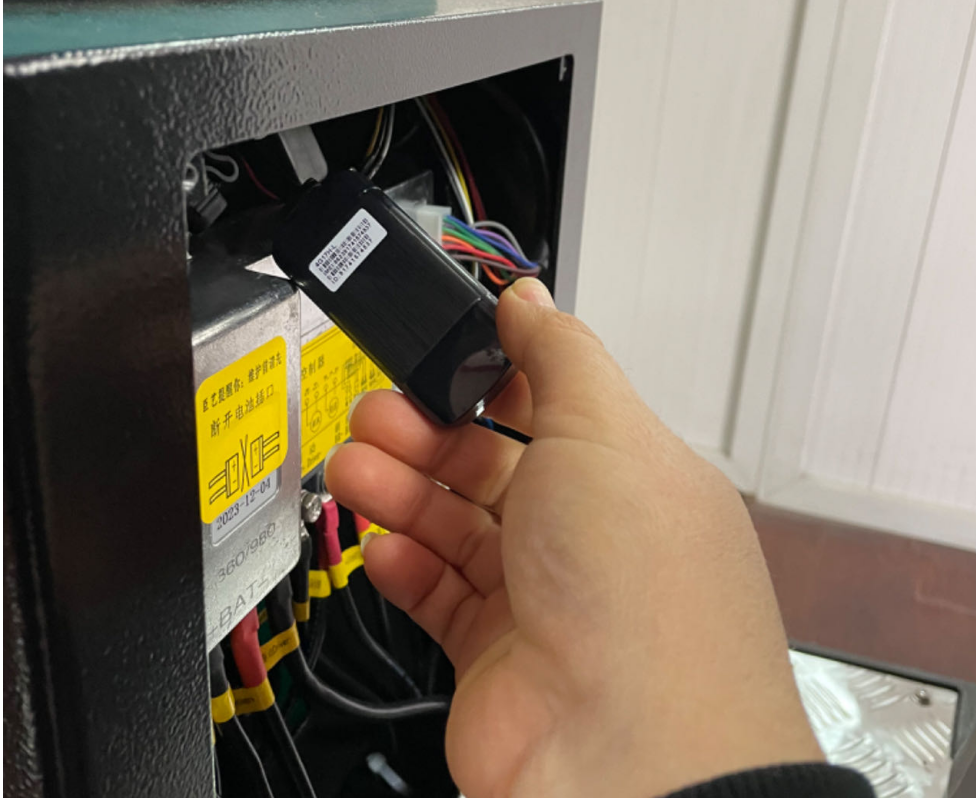
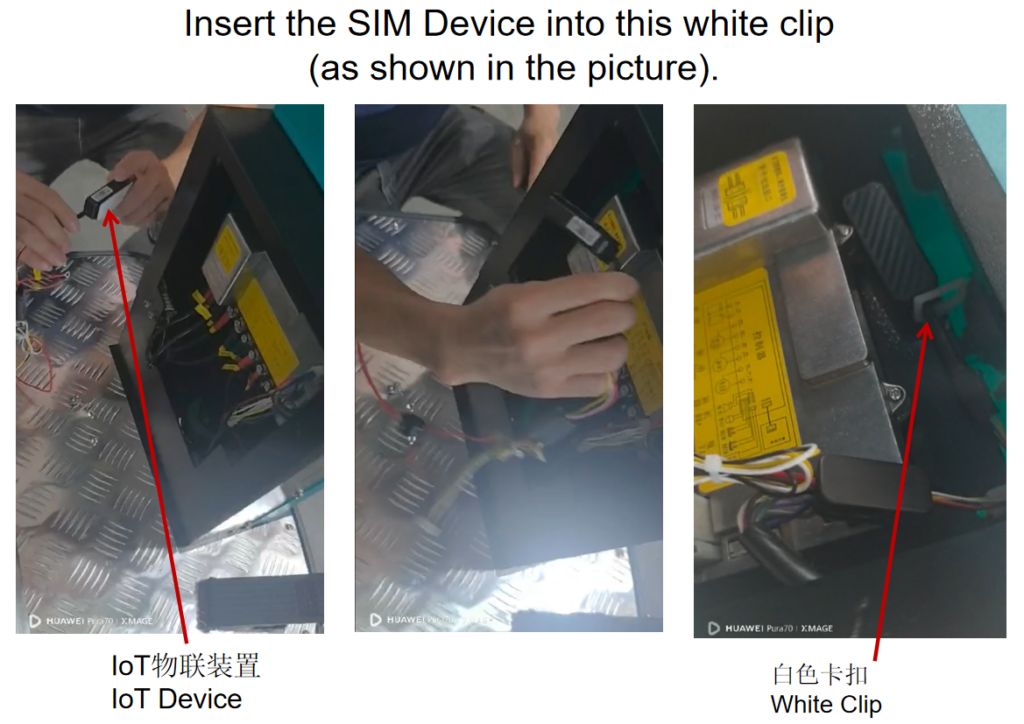
- Find the IoT device inside the machine
- Identify the SIM card slot
Step 3: Insert the SIM Card
- Insert the SIM card correctly (chip facing down or as labeled)
- Make sure it clicks into place
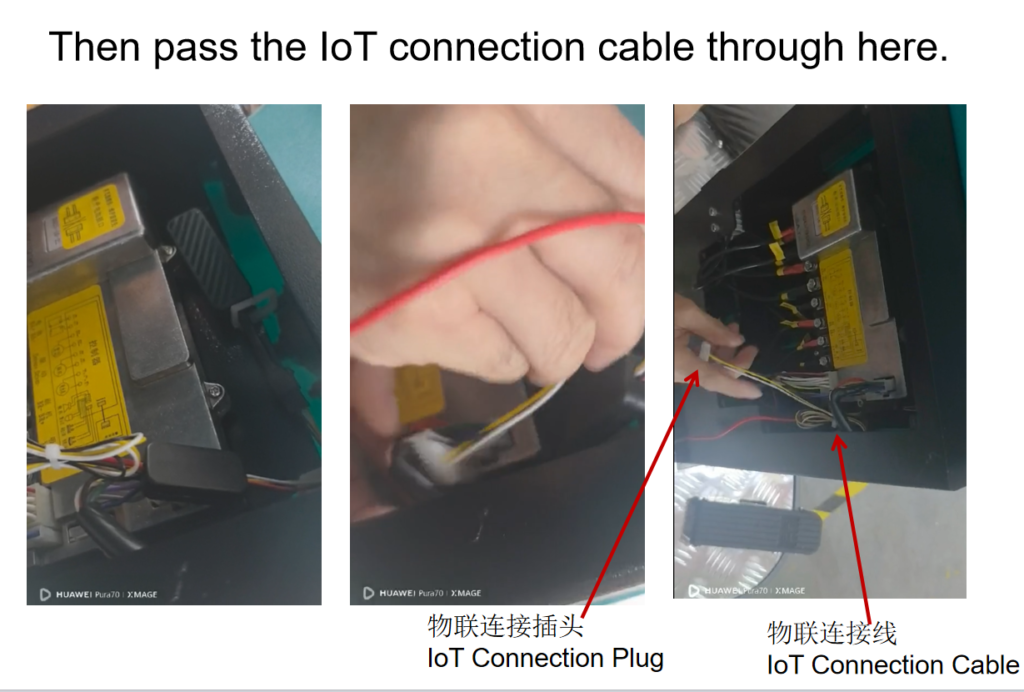
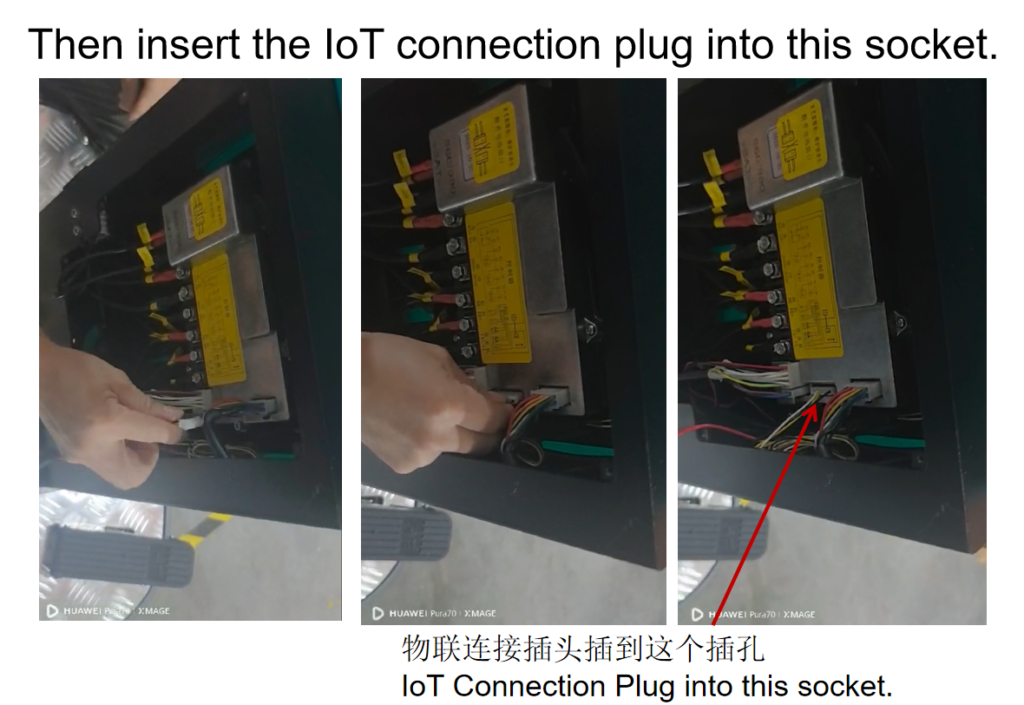
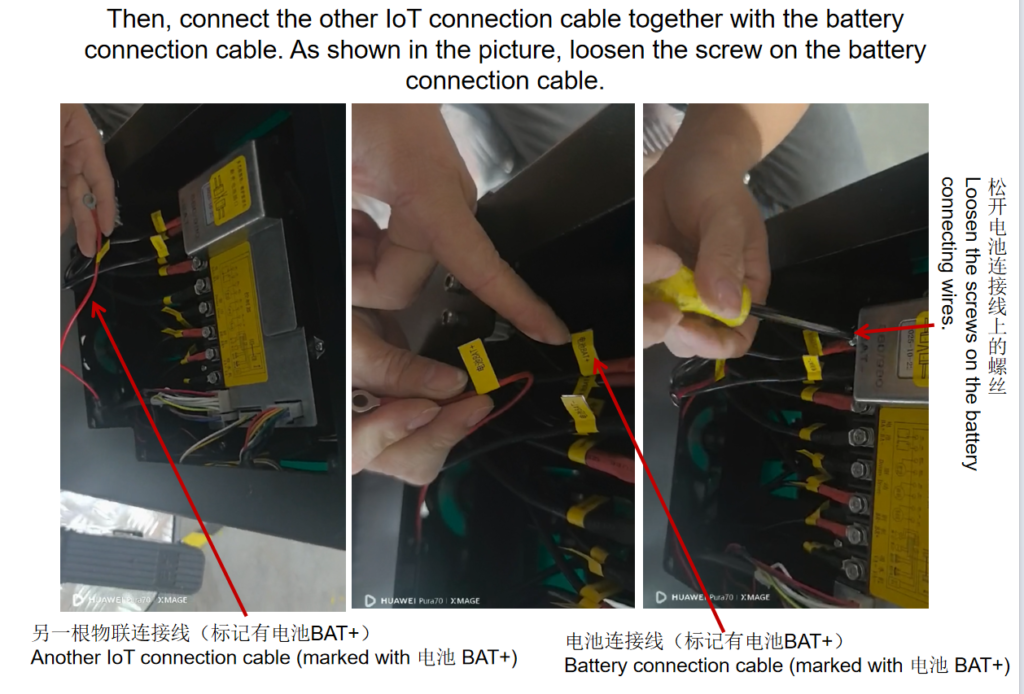
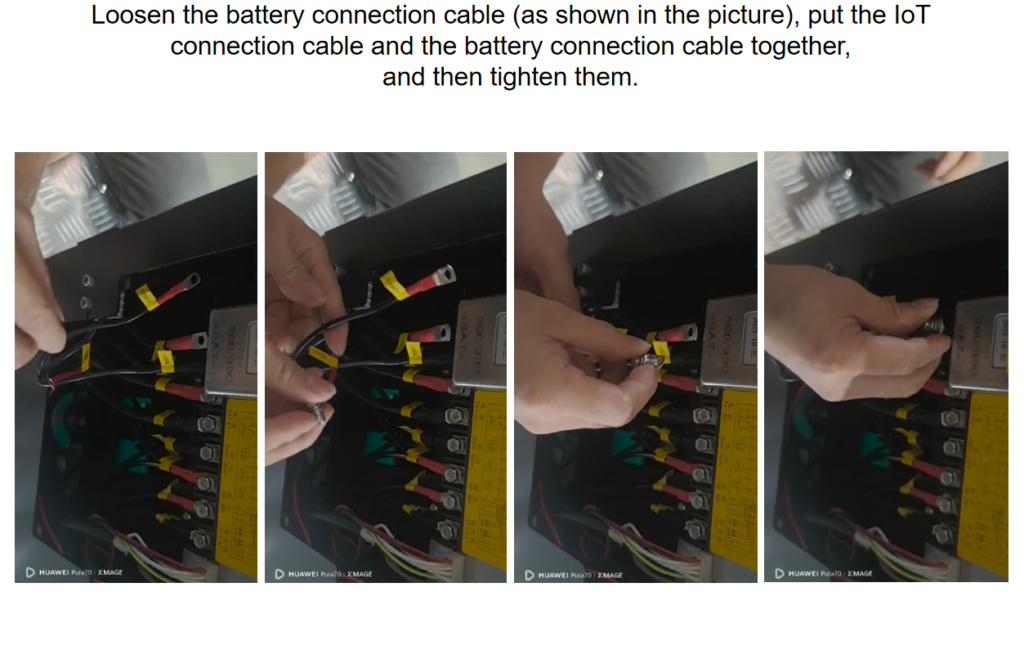
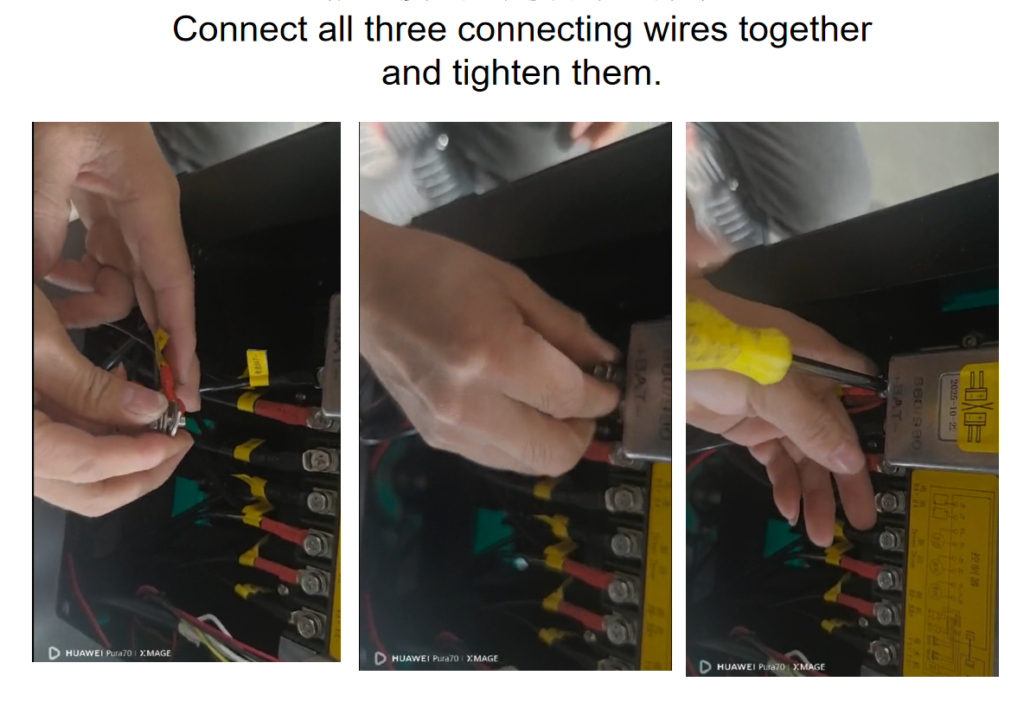
Then step by step as follows:
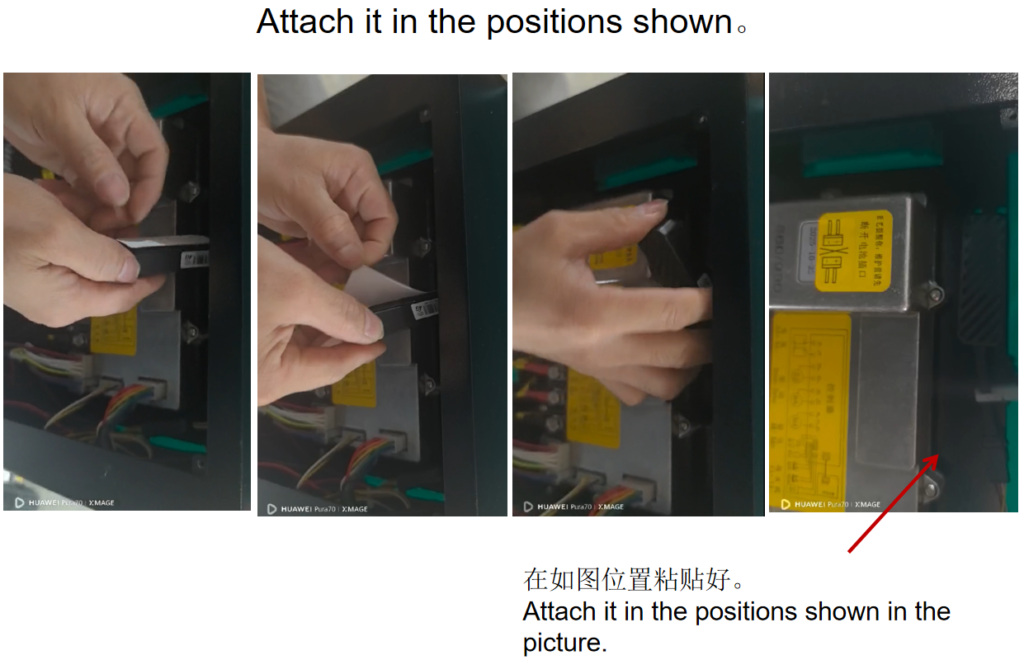
Step 4: Secure Everything
- Close the panel
- Tighten the screws
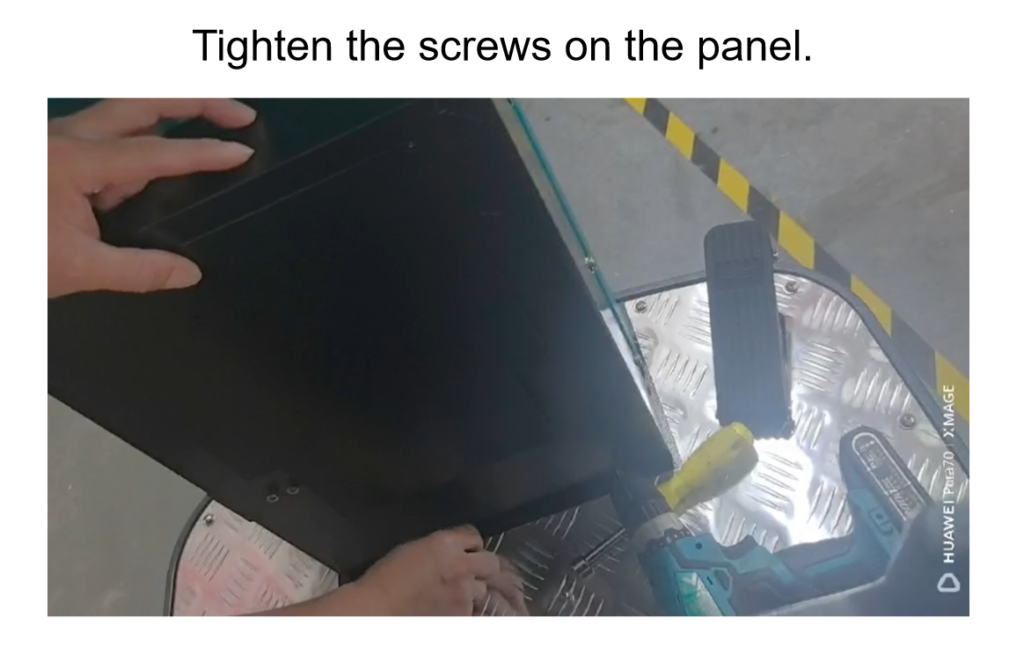
5. How to Install the IoT Device (If Not Pre-Installed)
If your IoT module is not installed yet:
Basic Steps:
- Open the panel
- Place the IoT device into the mounting clip
- Connect the IoT cable to the machine socket
- Connect power wires to the battery terminal
- Secure all connections tightly
- Close the panel
💡 Tip: Make sure all cables are firmly connected—loose wiring can cause the system to go offline.
6. How to Activate and Log Into the System
Step 1: Go to the Platform
Open your browser and visit:
👉 https://gps51.com
Step 2: Log In
- Enter your username and password
- These are provided with your machine
Step 3: Set Language
- Change language to English (top right corner)
Step 4: Set Map Type
- Choose Google Maps for best experience
7. Understanding the Dashboard
Once logged in, you’ll see your dashboard.
Here’s what you can do:
📍 Real-Time Monitoring
- See where your machine is right now
📊 Usage Data
- Cleaning time
- Area covered
- Machine status
🧭 Route History
- Replay where the machine has been
- Track daily or monthly activity
⚠️ Alerts & Errors
- Get notified if something goes wrong
8. How to Use Key Features
Track Machine Location
- Click “Monitor” → “List”
- Select your machine
- View its real-time position
View Cleaning History
- Click “History”
- Select date
- Press “Play” to see movement replay
Set a Working Area (Geo-Fence)
- Create a virtual boundary
- Get alerts if the machine leaves the area
Generate Reports
- Check working hours
- Export cleaning reports for management
9. Using the Mobile App
You can also manage everything from your phone:
- Download the app (QR code provided with system)
- Log in with your account
- Set language to English
- Use the same features as the web platform
10. Troubleshooting Tips
If your IoT system is not working:
❌ No signal?
- Check SIM card is installed correctly
- Confirm data plan is active
❌ Device offline?
- Check power connection to IoT module
- Restart the machine
❌ No data updates?
- Make sure SIM card supports data (not voice-only)
11. Final Tips for First-Time Users
- Start with one machine to get familiar
- Check the dashboard daily at first
- Use reports to improve cleaning efficiency
- Train your team to understand basic tracking
Conclusion
Once set up, your IoT system becomes a powerful management tool.
Instead of guessing what’s happening on-site, you’ll have real-time visibility, data insights, and full control—all from your computer or phone.